
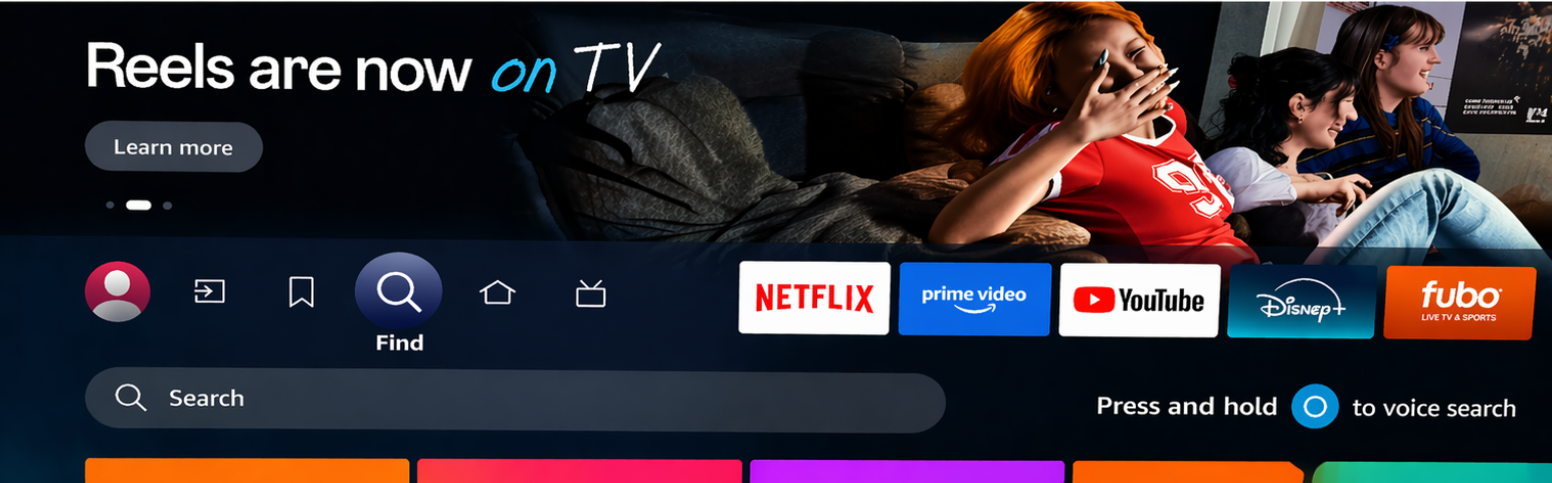
To set up the BlazeTV app on your Amazon Fire TV Stick, first go to the magnifying glass icon that has “Search” next to it. Here, type in BlazeTV and click on “search.”
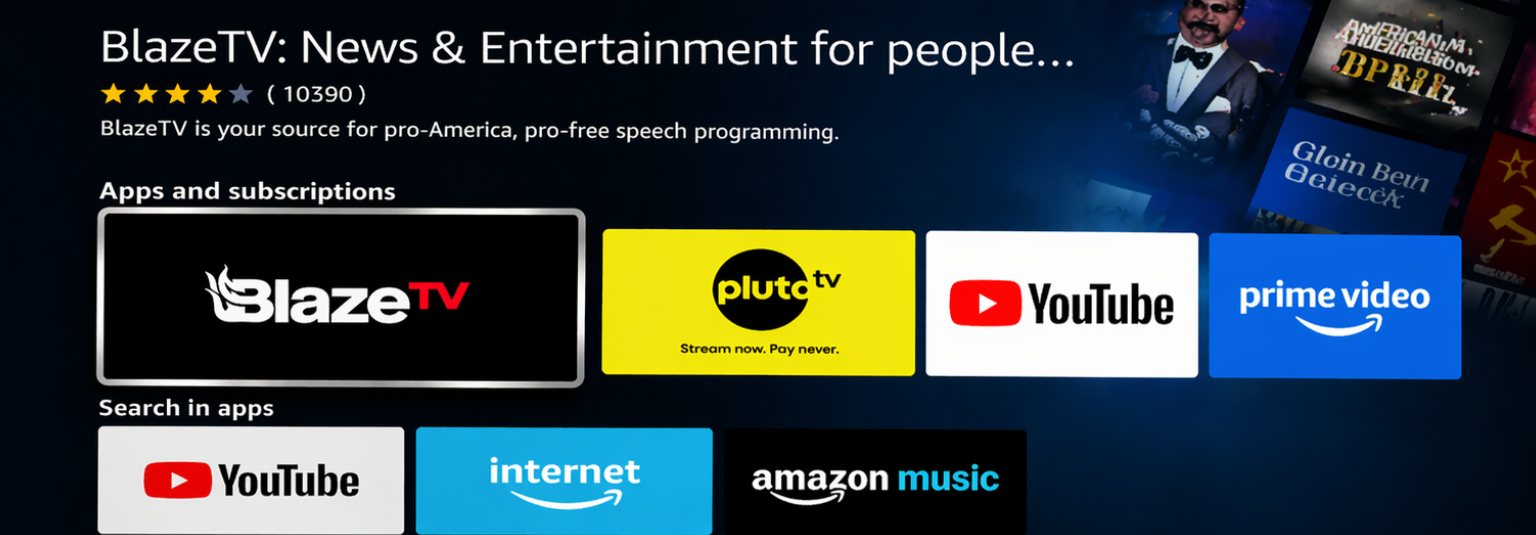
When it shows up in the search results, click on “get” if you’ve previously had it downloaded on this fire stick it may also say “download? You own it.” You should then have the option to launch the BlazeTV app.
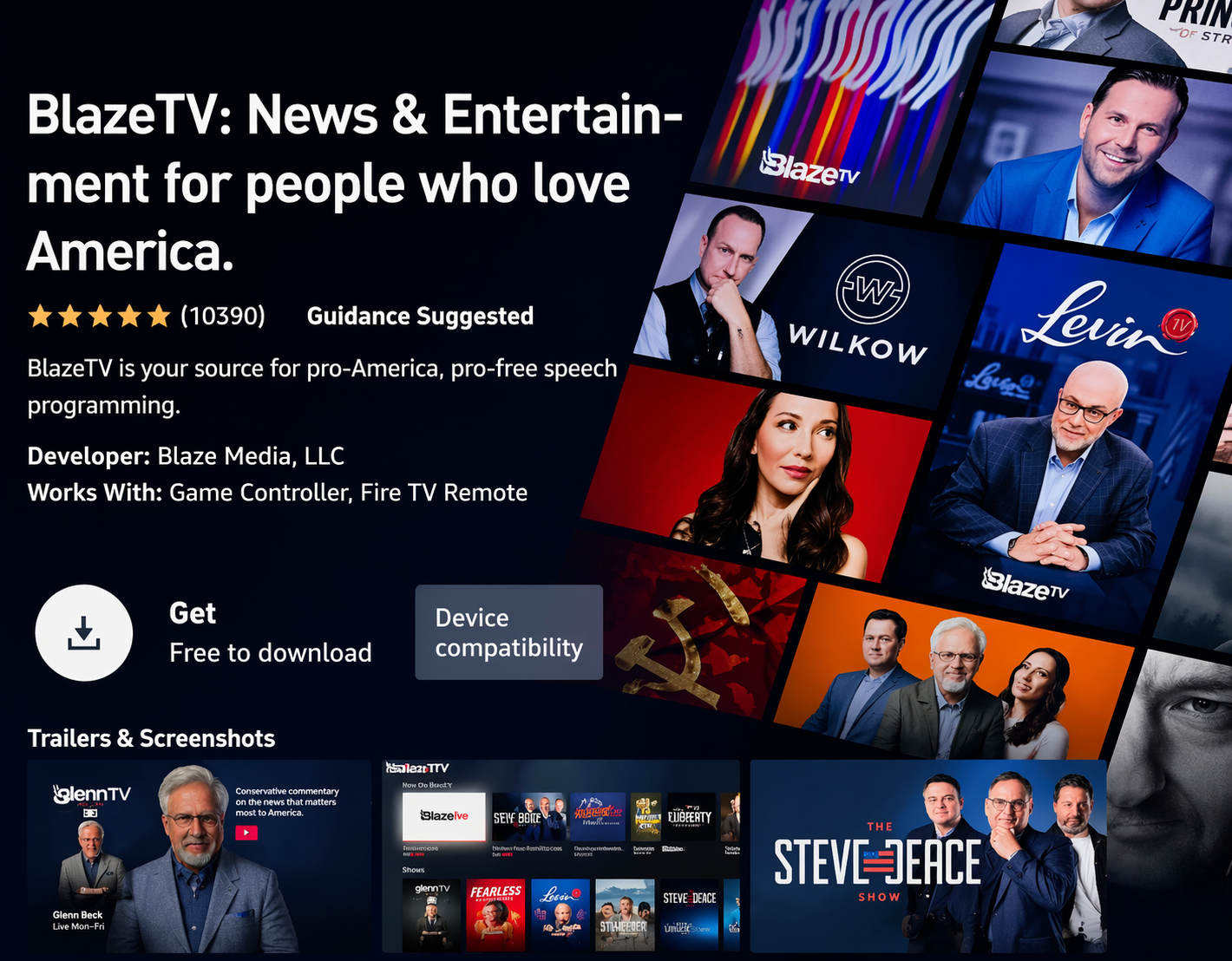
Upon launching and opening the BlazeTV app, you will be taken to the home page with various shows showing. Click on any show and you will be prompted to “go to the URL below” and enter a 6 digit code showing on the screen. The URL in question is blazetv.com/activate.
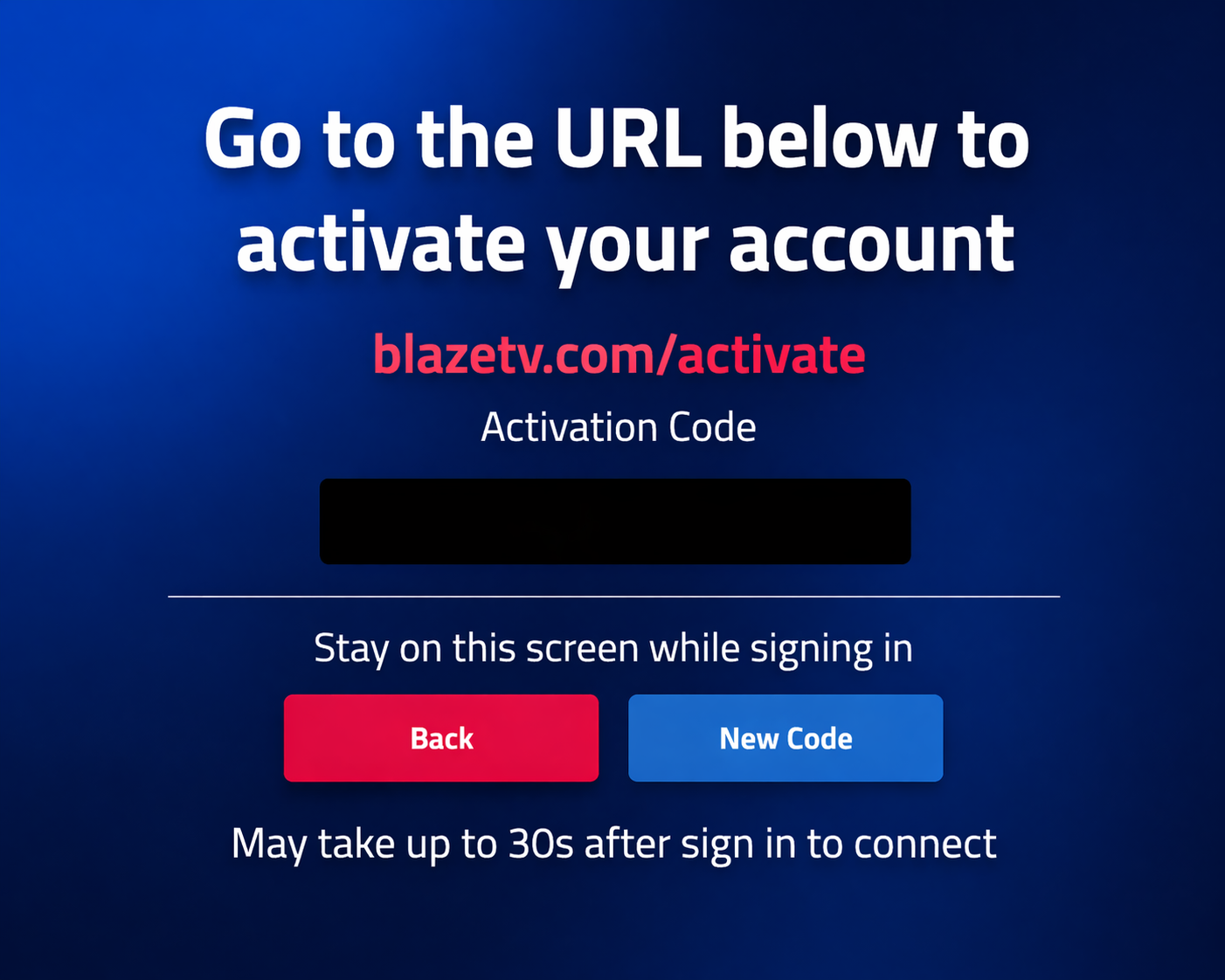
IMPORTANT: Whichever browser you are using to go to blazetv.com/activate must not be signed into blazetv.com, if you are; sign out first, then visit blazetv.com/activate and enter the code given on your screen.
IMPORTANT: If the code on your screen is showing all zeros “000000” then back out of the BlazeTV app and go into settings. Once in settings click on “Applications” then “Manage Installed Applications” then select BlazeTV. Once here click on “Force Stop” then “Clear Cache” then “Clear Data.” Now relaunch the BlazeTV app, click on a show and it should provide an actual code that you can use to log in. (This same method can be used to resolve most BlazeTV issues that may arise on the Amazon firestick.)
You can contact us by emailing support@blazemedia.com, or by calling (800) 282-2788 Monday through Friday from 9:00 AM to 7:00 PM Central Time (holidays excepted). Or, submit a support ticket here.
